
Voice messages
become text

Completely offline. No subscription. No tracking.
Features
Voice message in → text out
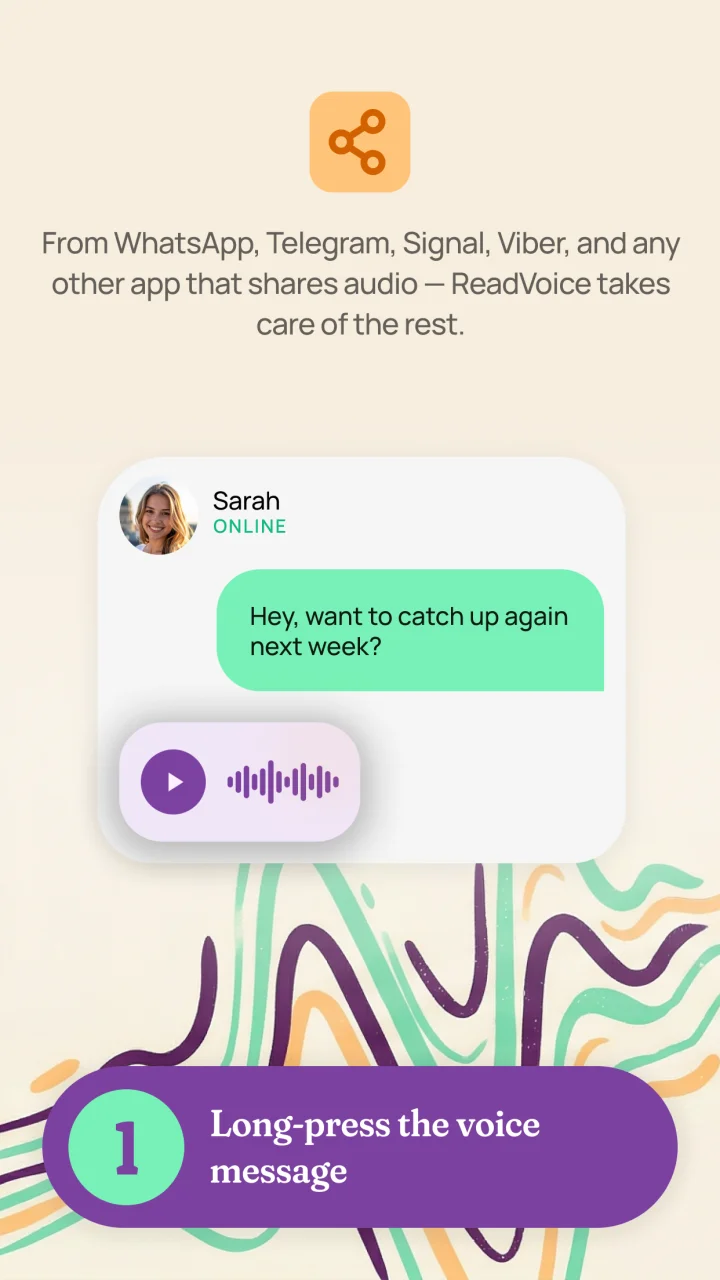
From WhatsApp, Telegram, Signal, Threema and any other app that can share audio — just tap share, ReadVoice does the rest.
Completely Offline
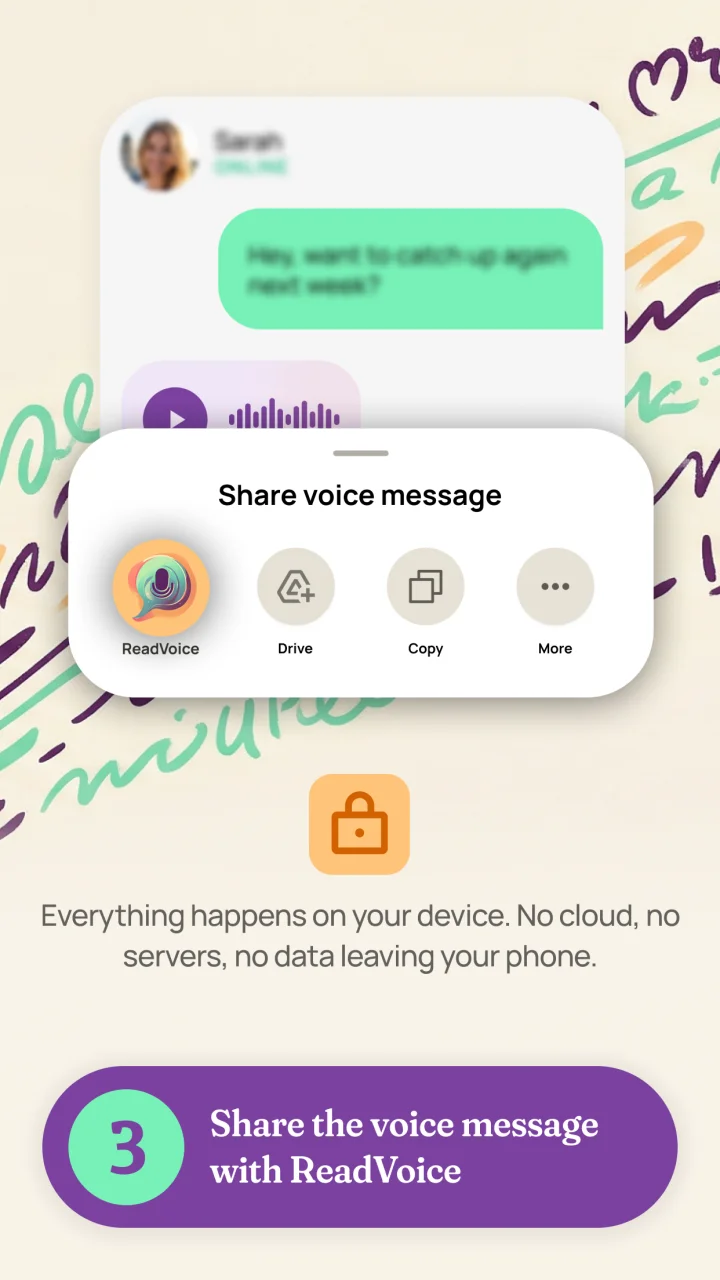
Everything happens on your device. No cloud, no servers, no data leaving your phone.
Over 20 Languages1
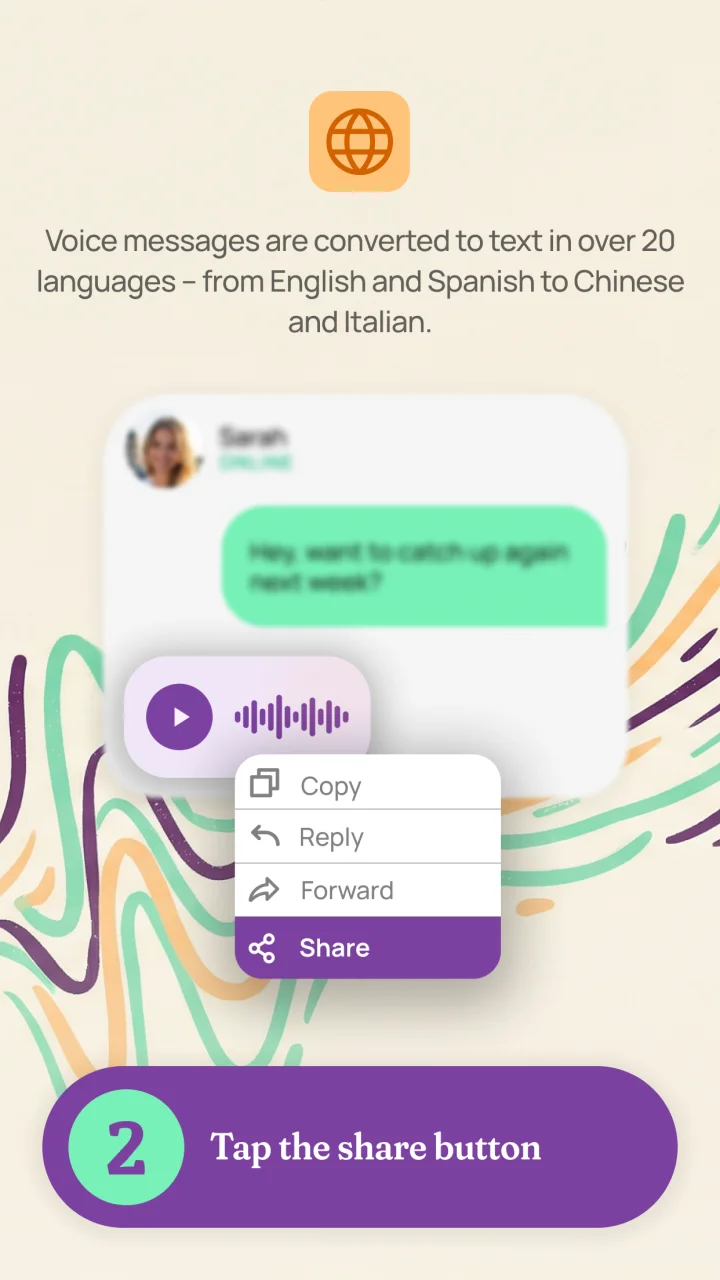
Voice messages are transcribed in over 20 languages – from English and Spanish to Chinese and Arabic.
Smart Detection2
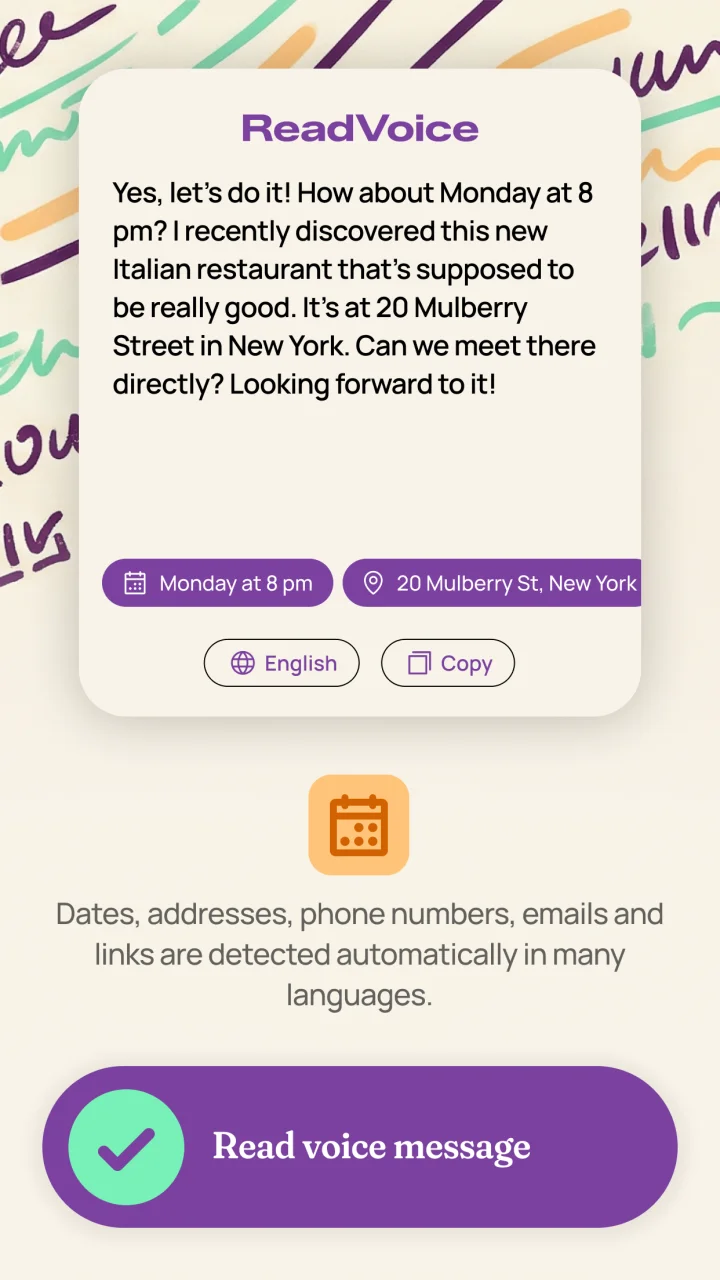
Dates, addresses, phone numbers, emails and links are detected automatically – tap to add them to Calendar, Maps or Mail.
Integrated Translation on iPhone3
Translate transcribed texts into other languages – all in one app.
AI Summary on iPhone4
Long voice messages as clear bullet points – directly on device, without the cloud.
Frequently Asked Questions
Which languages can ReadVoice convert to text?
The following languages are supported on iPhone:
On every device:
- Arabic
- Danish
- Dutch
- English
- Finnish
- French
- German
- Italian
- Norwegian (Bokmål)
- Portuguese (Brazil)
- Spanish
- Swedish
- Turkish
Additionally on some devices:
- Croatian
- Czech
- Greek
- Hungarian
- Polish
- Romanian
- Slovak
- Ukrainian
The following languages are supported on Android:
| Quality | Languages |
|---|---|
| Excellent | German, English, Spanish, French, Chinese, Japanese, Korean |
| Very good | Portuguese, Italian, Dutch, Danish, Swedish, Norwegian, Finnish, Polish, Czech, Romanian, Hungarian, Ukrainian |
| Good | Greek, Bulgarian, Croatian, Slovenian, Serbian, Slovak, Estonian, Latvian, Lithuanian, Catalan, Maltese, Hindi, Bengali, Gujarati, Marathi, Assamese, Kannada, Kashmiri |
How do I share a WhatsApp voice message?
- Open the chat with the voice message
- Long-press the voice message
- Tap "Forward" in the context menu
- Tap in the bottom right
- Select ReadVoice
- Open the chat with the voice message
- Long-press the voice message
- Tap in the top menu bar
- Select ReadVoice
How do I share a Telegram voice message?
- Open the chat with the voice message
- Long-press the voice message
- Tap "Select"
- Tap at the bottom center
- Select ReadVoice from the share sheet
- Open the chat with the voice message
- Long-press the voice message
- Tap "Select"
- Tap at the bottom center
- Select ReadVoice
How do I share a Signal voice message?
- Open the chat with the voice message
- Long-press next to the message bubble
- Tap
- Select ReadVoice
- Open the chat with the voice message
- Long-press next to the message bubble
- Tap
- Select ReadVoice
How do I share a Threema voice message?
- Open the chat with the voice message
- Long-press the voice message
- Select "Share" from the context menu
- Select ReadVoice
- Open the chat with the voice message
- Long-press the voice message
- Select "Share" from the context menu
- Select ReadVoice
How do I share a Viber voice message?
- Open the chat with the voice message
- Long-press the voice message
- Select "Share" from the menu
- Select ReadVoice
- Open the chat with the voice message
- Long-press the voice message
- Select "Share" from the menu
- Select ReadVoice
How do I share an Element voice message?
- Open the chat with the voice message
- Long-press the voice message
- Select "Share"
- Select ReadVoice
- Open the chat with the voice message
- Long-press the voice message
- Select "Share"
- Select ReadVoice
What about Facebook Messenger, Instagram and iMessage?
What other audio sources can I use?
- Open the desired app (Files, Voice Memos, Mail, iCloud Drive, Google Drive, Dropbox)
- Navigate to the audio file
- Long-press the file or tap
- Select ReadVoice
- Open the desired app (File Manager, Audio Recorder, Gmail, Google Drive, Dropbox, OneDrive)
- Navigate to the audio file
- Tap or select "Share" from the menu
- Select ReadVoice
Which audio formats are supported?
How do I make ReadVoice always visible in the share sheet?
- Open any share sheet (e.g. share a voice message)
- Scroll right in the app row and tap "More"
- Tap "Edit" in the top right
- Enable ReadVoice and drag it to the top of your favorites
- Tap "Done"
Why is the app so large?
Completely offline. No subscription. No tracking.